

The Complete CSS Cheatsheet & Learning Guide
If you think learning CSS is just about memorizing properties and colors, think again.
CSS was created to separate design from HTML content. Proposed in 1994 by Håkon Wium Lie and standardized in 1996, it evolved from basic styling to a powerful modular system.
Now days, CSS is no longer “just styling.” It is a core engineering skill that defines usability, performance, accessibility, and user experience. With AI tools generating layouts instantly, companies don’t need people who copy CSS—they need developers who understand layout logic and visual systems.
AI will not replace frontend developers. But developers who truly understand CSS will replace those who only paste code.
After teaching beginners, reviewing real-world projects, and breaking production UIs more times than I can count, this is the complete CSS cheatsheet-style roadmap with real examples and code snippets to help you actually understand CSS.
What is CSS?
CSS stands for Cascading Style Sheets. It is the language that gives a webpage its look and feel. If HTML is the skeleton of a website, CSS is the skin, clothes, and personality. It controls how things appear, not what they are (apply styles to them).
The term “Cascading” is used in CSS because styles flow in a controlled order, just like a cascade of water flowing from top to bottom.
Why CSS Still Matters
Every digital product still needs: Readable text, usable layouts, responsive designs, accessible interfaces, smooth interactions.
CSS is the layer that converts logic into human-friendly experiences.+
CSS Fundamentals (With Example)
Basic Syntax
selector {
property: value;
}Example:
h1 {
color: #333;
font-size: 32px;
}This tells the browser how the h1 element should look.
Ways to Add CSS
Inline CSS (Avoid)
<h1 style="color:red">Hello</h1>Inline CSS apply styles directly to elements but makes code messy and hard to maintain.
Internal CSS
<style>
h1 { color: blue; }
</style>In Internal CSS, styles are written inside the HTML file, useful for small projects or quick testing.
External CSS
<link rel="stylesheet" href="style.css">External CSS is written in a separate file, keeping code clean, reusable, and scalable.
Selectors & Specificity
* /* all elements */
p /* element */
.card /* class */
#title /* id */Example:
.card {
padding: 20px;
border-radius: 12px;
}Selectors choose which elements to style, and specificity determines which CSS rule takes priority when multiple rules apply.
Colors & Typography
body {
font-family: 'Segoe UI', sans-serif;
color: #222;
}
p {
font-size: 1rem;
line-height: 1.6;
}The types of color values:
- 1.RGB - Specify color using red, green, blue
- 2.HEX - Specify the color then using hex code. Example: #ff7180
- 3.HSL - Specifies the color by using hsl values
The CSS Box Model (Core Concept)
.card {
width: 300px;
padding: 20px;
border: 2px solid #ddd;
margin: 16px;
}Fix common layout bugs:
* { box-sizing: border-box; }The box model defines how spacing works using content, padding, border, and margin, and is essential for fixing layout and sizing issues.
Units & Responsive Sizing
.container {
width: 80%;
min-height: 100vh;
}
h1 { font-size: 2rem; }In the case of Units & Responsive Sizing use rem for fonts and % for layouts ensures designs scale properly across different screen sizes and devices.
Display & Position
.hidden { display: none; }
.invisible { visibility: hidden; }Position example:
.parent { position: relative; }
.child {
position: absolute;
top: 10px;
right: 10px;
}Display controls how elements appear on the page, while position defines where elements are placed relative to the screen or other elements.
Flexbox Example
.navbar {
display: flex;
justify-content: space-between;
align-items: center;
}
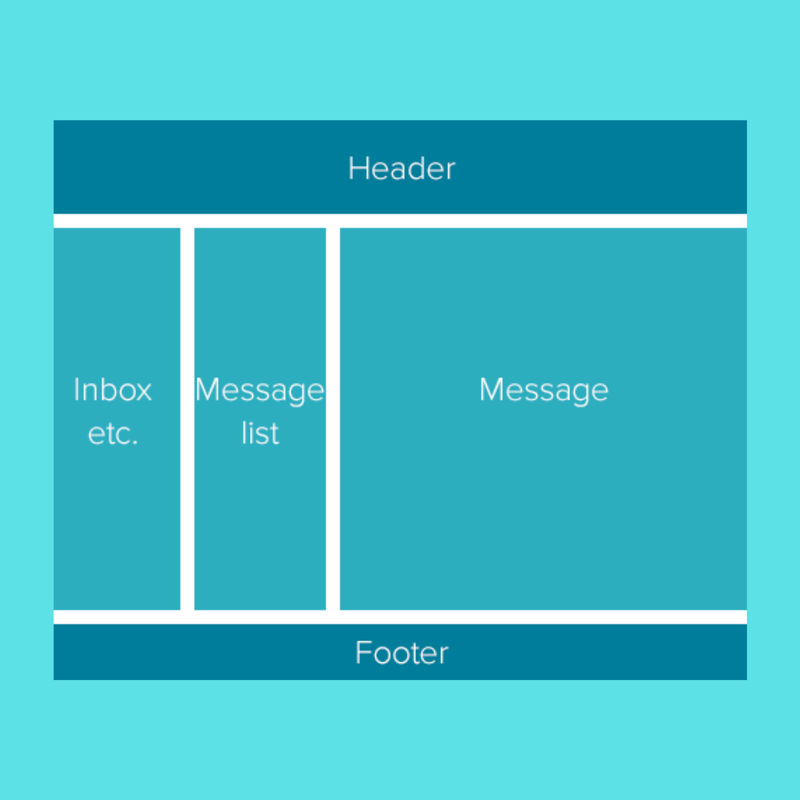
Flexbox helps align and space elements in a single row or column, making it ideal for navbars, cards, and flexible layouts.
CSS Grid Example
.grid {
display: grid;
grid-template-columns: repeat(3, 1fr);
gap: 20px;
}Grid is used to create structured, two-dimensional layouts, making it perfect for dashboards, galleries, and full page designs.
Backgrounds & Gradients
.hero {
background: linear-gradient(135deg, #667eea, #764ba2);
color: white;
}Backgrounds & Gradients are used to add colors, images, or smooth color blends that make sections like hero banners visually attractive and engaging.
Borders, Radius & Shadows
.card {
border-radius: 16px;
box-shadow: 0 10px 25px rgba(0,0,0,0.15);
}Borders, Radius & Shadows are used to define element edges, create rounded corners, and add depth, which helps separate components visually and gives UI cards a clean, modern, and elevated look.
Hover Effects & Transitions
button {
transition: background 0.3s ease;
}
button:hover {
background: black;
color: white;
}Hover effects and transitions smoothly change the appearance of elements when users interact with them, giving visual feedback that makes the interface feel responsive, intuitive, and easier to use.
Basic Animation Example
@keyframes fadeIn {
from { opacity: 0; }
to { opacity: 1; }
}
.card {
animation: fadeIn 0.6s ease;
}Basic animations help elements appear smoothly on the screen when a page loads, making the interface feel more lively, engaging, and visually appealing instead of static.
Responsive Design Example
@media (max-width: 768px) {
.navbar {
flex-direction: column;
}
}Responsive design allows layout to automatically adapt to different screen sizes, ensuring the website looks and works properly on mobiles, tablets, laptops, and large screens without breaking the design.
CSS Variables
:root {
--primary: #667eea;
}
button {
background: var(--primary);
}CSS Variables allow to store values like colors, font sizes, or spacing in one place and reuse them throughout your CSS, making it easy to keep designs consistent and change themes by updating a single value.
An Example: Profile Card
<!DOCTYPE html>
<html lang="en">
<head>
<meta charset="UTF-8">
<meta name="viewport" content="width=device-width, initial-scale=1.0">
<title>Profile Card</title>
<style>
* {
margin: 0;
padding: 0;
box-sizing: border-box;
}
body {
font-family: 'Segoe UI', Tahoma, Geneva, Verdana, sans-serif;
background: linear-gradient(135deg, #667eea 0%, #764ba2 100%);
display: flex;
justify-content: center;
align-items: center;
min-height: 100vh;
padding: 20px;
}
.card {
background: white;
width: 350px;
border-radius: 20px;
padding: 40px 30px;
text-align: center;
box-shadow: 0 20px 60px rgba(0, 0, 0, 0.3);
transition: transform 0.3s ease;
}
.card:hover {
transform: translateY(-10px);
}
.profile-img {
width: 120px;
height: 120px;
border-radius: 50%;
object-fit: cover;
border: 4px solid #667eea;
margin-bottom: 20px;
}
.name {
font-size: 24px;
font-weight: 700;
color: #2d3748;
margin-bottom: 8px;
}
.title {
font-size: 16px;
color: #718096;
margin-bottom: 20px;
}
.description {
font-size: 14px;
color: #4a5568;
line-height: 1.6;
margin-bottom: 30px;
}
.social-links {
display: flex;
gap: 15px;
justify-content: center;
margin-bottom: 25px;
}
.social-btn {
width: 45px;
height: 45px;
border-radius: 50%;
background: #f7fafc;
border: 2px solid #e2e8f0;
display: flex;
align-items: center;
justify-content: center;
cursor: pointer;
transition: all 0.3s ease;
text-decoration: none;
color: #4a5568;
font-weight: 600;
}
.social-btn:hover {
background: #667eea;
border-color: #667eea;
color: white;
transform: scale(1.1);
}
.action-buttons {
display: flex;
gap: 12px;
}
.btn {
flex: 1;
padding: 12px 20px;
border: none;
border-radius: 10px;
font-size: 14px;
font-weight: 600;
cursor: pointer;
transition: all 0.3s ease;
}
.btn-primary {
background: #667eea;
color: white;
}
.btn-primary:hover {
background: #5568d3;
transform: translateY(-2px);
box-shadow: 0 5px 15px rgba(102, 126, 234, 0.4);
}
.btn-secondary {
background: white;
color: #667eea;
border: 2px solid #667eea;
}
.btn-secondary:hover {
background: #667eea;
color: white;
transform: translateY(-2px);
}
</style>
</head>
<body>
<div class="card">
<img src="https://ik.imagekit.io/AkashPortfolioAssets/akash.jpg?tr:w-384" alt="Profile" class="profile-img">
<h2 class="name">Akash Halder</h2>
<p class="title">Full Stack Developer</p>
<p class="description">
Building amazing web experiences with modern technologies. Passionate about clean code and user experience.
</p>
<div class="social-links">
<a href="https://x.com/HalderXi" class="social-btn">𝕏</a>
<a href="https://www.linkedin.com/in/akash-halder-nil/" class="social-btn">in</a>
<a href="https://www.instagram.com/akash_coding_hub/" class="social-btn">⚡</a>
<a href="example@gmail.com" class="social-btn">📧</a>
</div>
<div class="action-buttons">
<button class="btn btn-primary">Follow</button>
<button class="btn btn-secondary">Message</button>
</div>
</div>
</body>
</html>
The Output

Common Mistakes
Most beginners struggle with CSS not because it is hard—but because they skip fundamentals. Sometimes they only use px instead of flexible units Ignoring mobile-first design Skipping the box model concept Overusing IDs and inline styles.
Fixing these mistakes early saves years of confusion.
Conclusion
Don’t memorize properties blindly. Build small components daily, break layouts, fix them and learn. That’s how real frontend developers are made.
